Google Drive
Connect Google Drive to monitor selected folders and process PDFs through the Meshly validation pipeline.
Integration Summary
Meshly connects to Google Drive to monitor selected folders and process PDFs through the same validation pipeline used for other contract sources.
What this integration enables
Meshly automatically ingests new and updated files in watched folders, extracts key fields from PDFs, and surfaces policy checks in the dashboard and exports.
Prerequisites
- Access requirements: Access to the Google Drive folders you want to monitor
- System permissions: Admin access in Meshly
How to Connect
Steps at a high level:
- Go to Settings and open the Integrations tab.
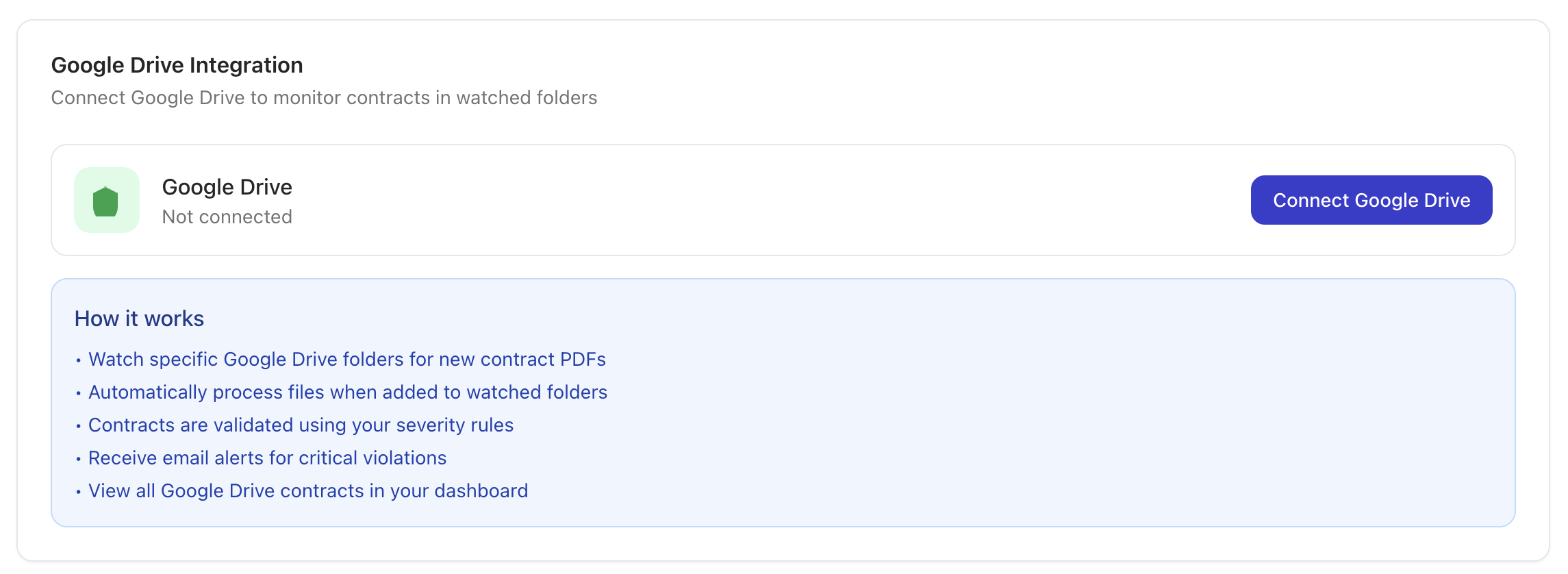
- Click Google Drive and select Connect.
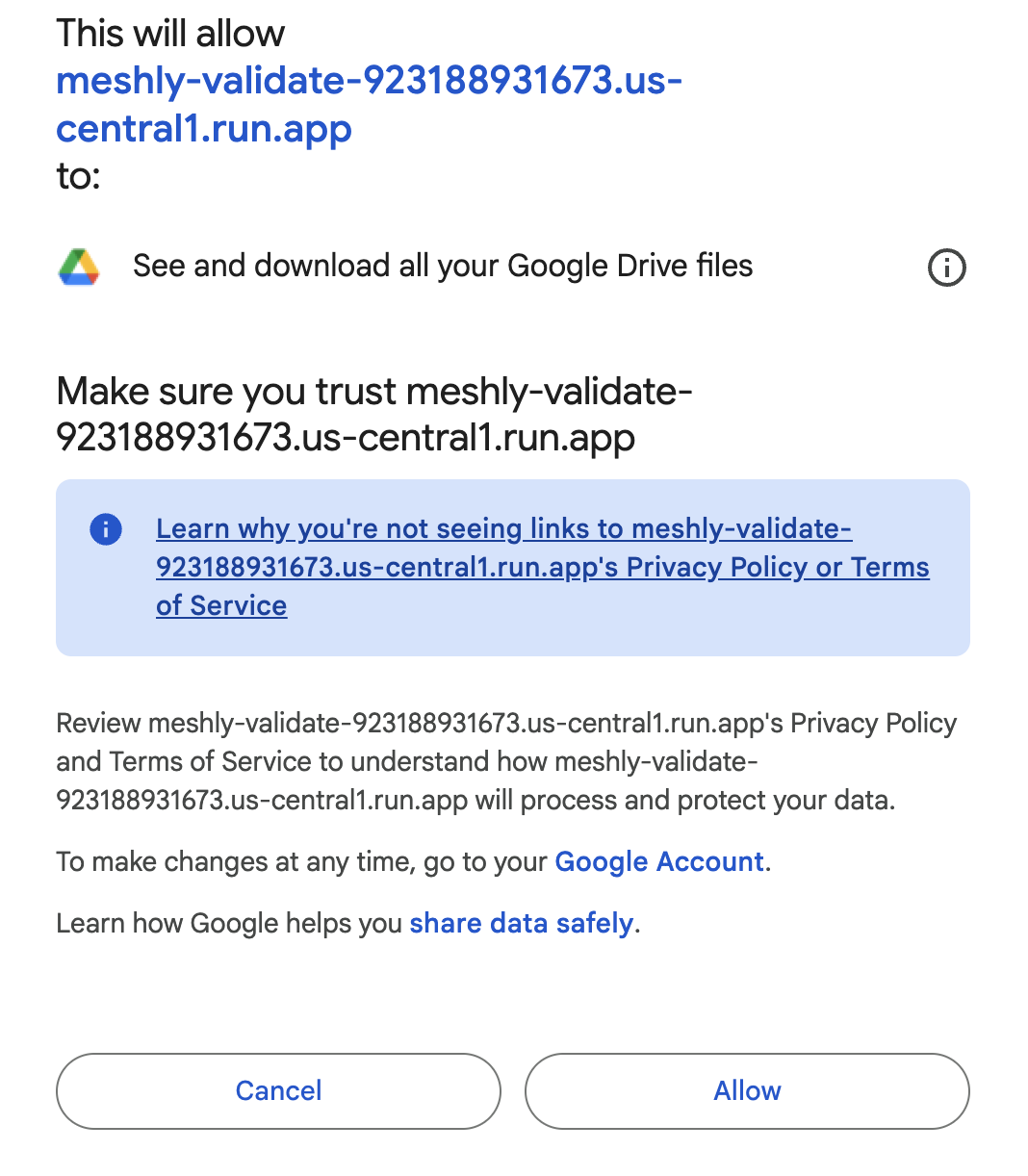
- Sign in with Google and authorize read-only access.
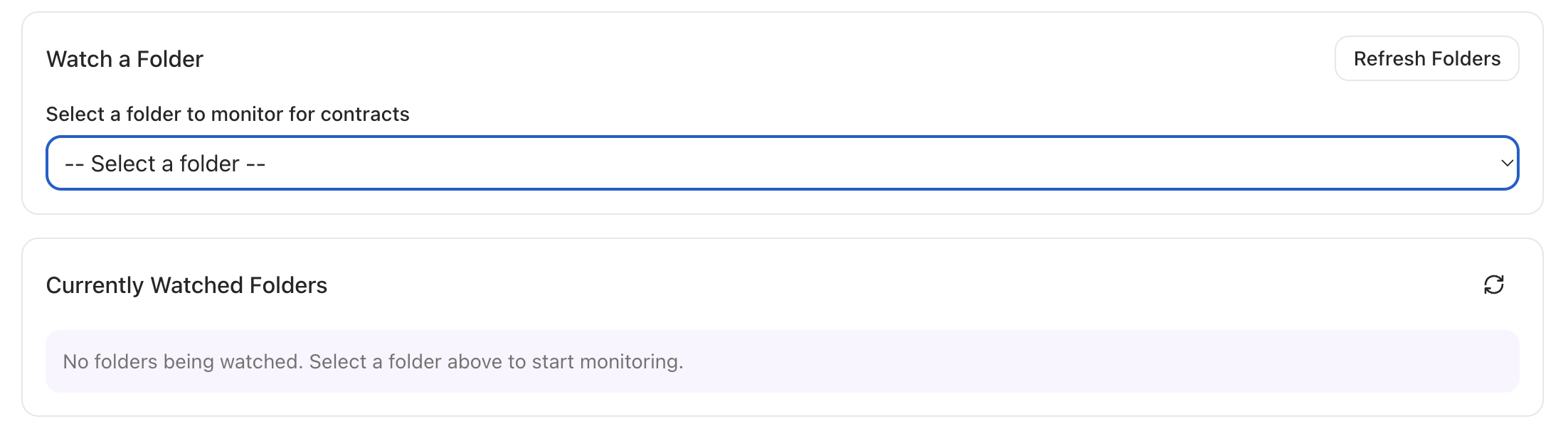
- Choose the folders you want Meshly to watch.
What happens immediately after connection
- Meshly stores a secure OAuth connection.
- Watch channels are created for selected folders.
- New and updated files begin processing.
Data Meshly Ingests
Objects
- Files in watched folders (PDFs)
Object states
- New files
- Updated files
Update behavior
- File updates are reprocessed.
- Previously processed files are de-duplicated.
What Meshly Checks
Meshly extracts document fields and runs the policy checks configured for your org. Results appear in the dashboard and CSV export.
Drift Detection
Contracts sourced from Google Drive can be used in drift detection against invoice sources.
Matching
- Meshly automatically matches records across sources.
Outputs
- UI flags with severity levels
- CSV export entries with violation reasons
Reports
- Filter by source, date range, customer, and amount.
- Export CSV for reconciliation and audit trails.
Scope and Limitations
Explicit non-support list
- Tax code mapping rules
- Currency conversion / multi-currency handling
- Credit notes
- Customer or item mapping
Google Drive specific
- Only folders explicitly watched are monitored.
- PDFs only (Google Docs are exported to PDF).
Troubleshooting
- File not appearing: Confirm the file is in a watched folder and is a PDF.
- Watch expired: Reconnect or re-add the folder to renew the watch.
- Token expired: Reconnect Google Drive in Integrations.
- File too large: Split or reduce the PDF size.
Support
Email hello@meshly.ai with file ID, folder ID, and a short description of the issue.
Need help? Email hello@meshly.ai